Merge two adjacent partitions
This is an example to merge partition D and F, please follow the steps below:
Step 1: Download EaseUS Partition Master, install it, launch it and go to the main screen.
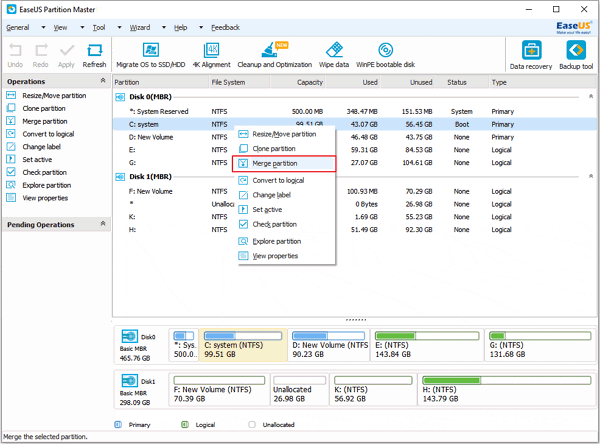
Step 2: Select partition F:, right click it, and then select Merge partition.
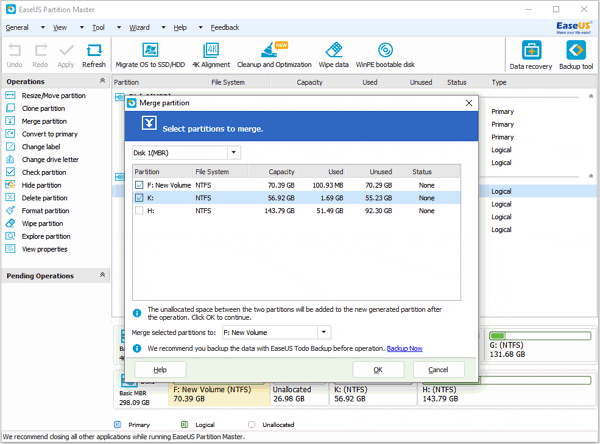
Step 3: In this Merge partition window, you should first choose two neighbour partitions: Partition D: and F: in the partition layout.
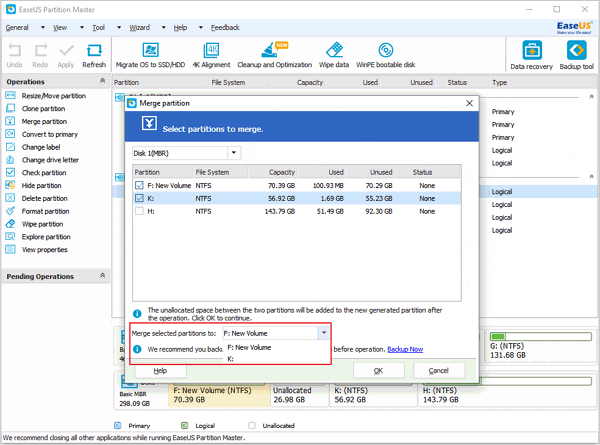
Step 4: Choose the merge destination: partition D: by selecting a partition label in the drop-down list of "Merge selected partitions to".
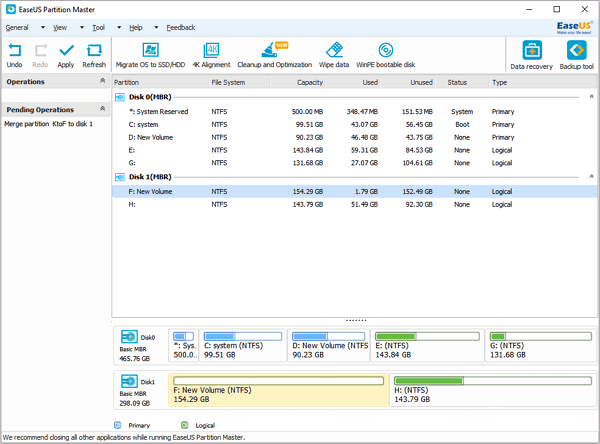
Step 5: Click OK, the program will check file system on the partitions.
Step 6: Click Apply, you have successfully merged the partition F into partition D.
Tips:
1. System partition and boot partition can only be set as destination, the same to the partition installed EaseUS Partition Master.
2. Only two neighbour partitions can be merged.
Merge two non-adjacent partitions
For example, your computer has four partitions - C, D, E, F. Now C is low disk space while E has much free space. How to merge partition E into partition C to increase system partition (C:) disk space? Following is step-by-step instructions to merge partition E to partition C with EaseUS Partition Master.
1. Backup the data on the partition E.
2. Install this partition software and launch it.
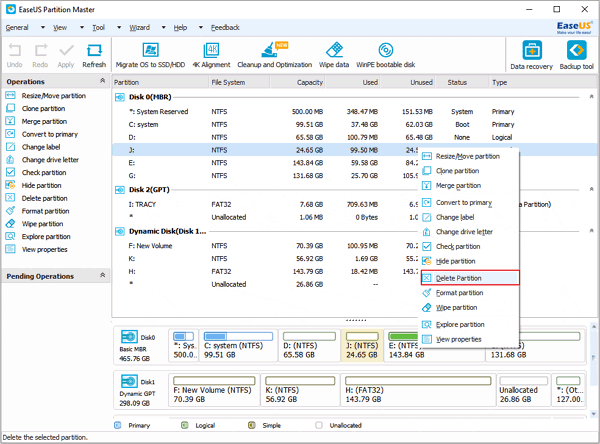
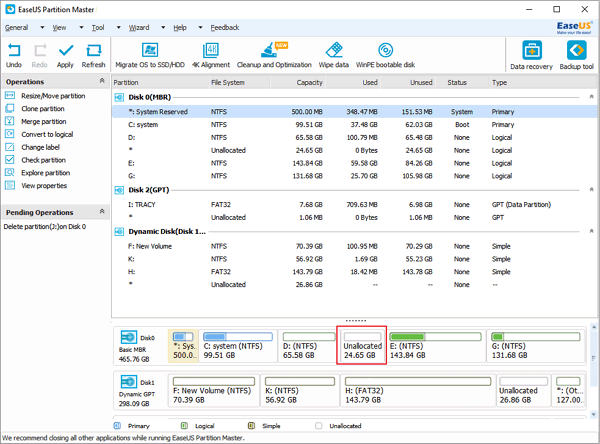
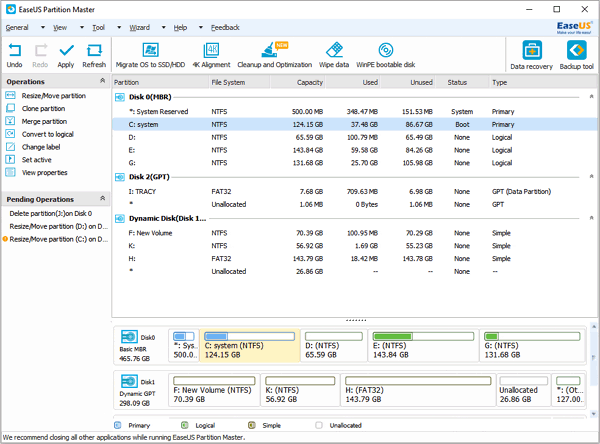
3. Delete the partition E with EaseUS Partition Master.
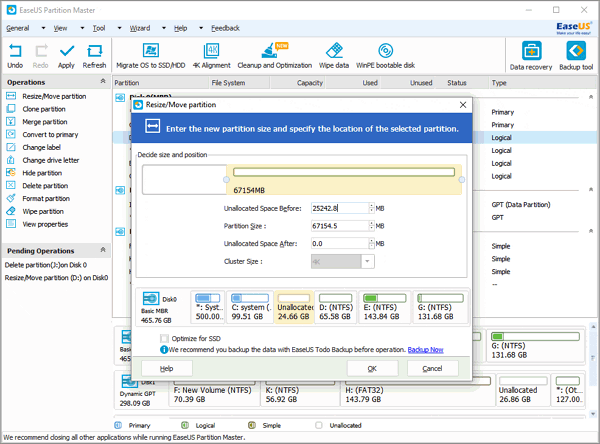
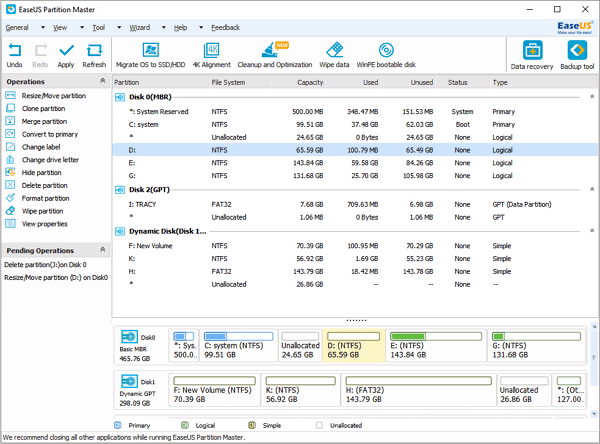
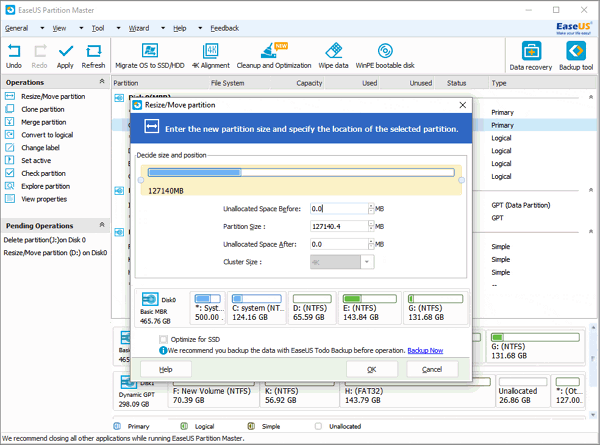
5. Select the partition C and right click it, select "Resize/Move partition" to extend the partition C.
6. Click Apply. Now you have merged partition E into partition C.
Related Articles: